Item Template
When developing UI, it is common to display lists of items, and Ensemble simplifies this process by providing the item-template property. When used within certain containers (e.g. Column, Carousel, Grid, ..), you can iterate through a data set and render a set of child widgets.
item-template takes the following properties:
| Property | Type | Description |
|---|---|---|
| data | array | Bind to an array of data from an API response or a variable |
| name | string | Variable name referencing each item in the array. Name it as per your use case (e.g. ‘person’, ‘item’ ..) |
| template | Widget | Define the child widget to render for each item in the array. Within this widget you can bind to the item using the name syntax (e.g. ${person.firstName}) |
| indexId | string | (optional) Default: index. The property that will be assigned the current index of the data array while looping through it |
Different containers may expose additional properties to further customize the rendering of the children, but they will always have the data and name.
Basic Usage
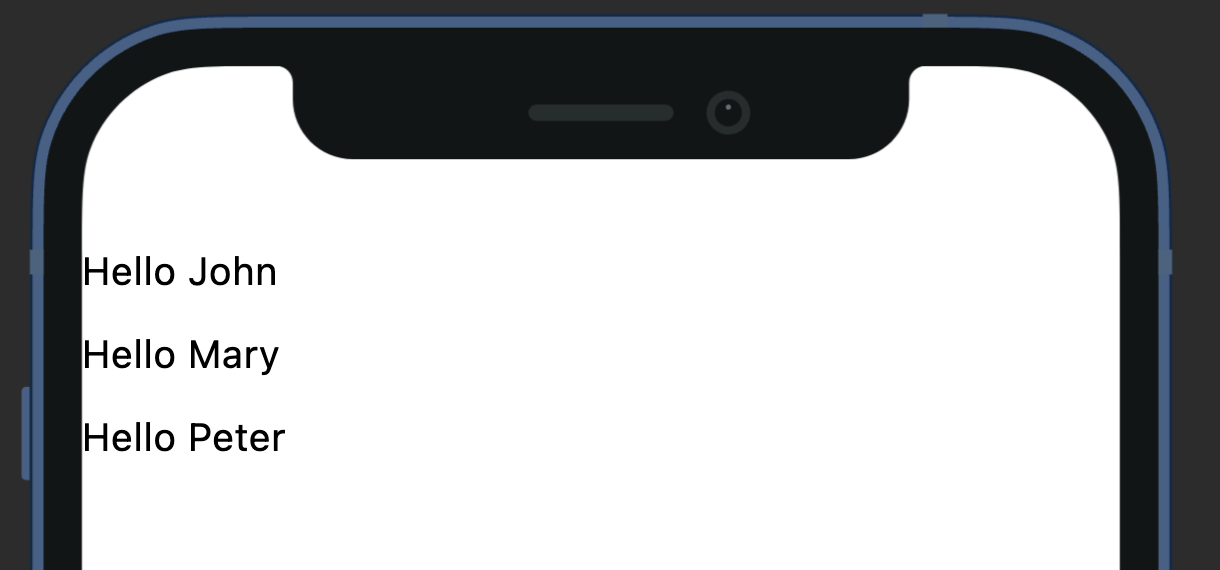
To demonstrate the basic usage of item-template, Below we hardcode a list of names and render each as a Text widget. These text widgets will be displayed vertically one after another because they are inside a Column parent, with a gap of 10 in between.
Column:
  styles:
    gap: 10 # gap between each child
  item-template:
    data: ["John", "Mary", "Peter"]
    name: name
    template:
      Text:
        text: Hello ${name}
The output will look something like this:
Binding to API data
In a real-world scenario, you would bind to data from an API response. Below is the shorten JSON payload from hitting “https://randomuser.me/api/?results=5 ”. We’ll be using this to render our UI.
{
  "results": [
    {
      "name": {
        "title": "Mrs",
        "first": "Lya",
        "last": "Brun"
      },
      "picture": {
        "large": "https://randomuser.me/api/portraits/women/9.jpg",
        "medium": "https://randomuser.me/api/portraits/med/women/9.jpg",
        "thumbnail": "https://randomuser.me/api/portraits/thumb/women/9.jpg"
      },
    },
    ... (more entries) ...
  ],
}
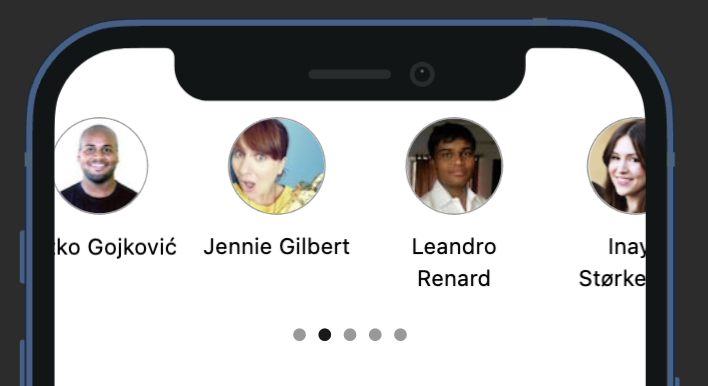
Let’s update our definition to fetch the API on page load, then show each person’s photo and name in a Carousel.
View:
  styles:
    useSafeArea: true
  # call the API upon loading the screen
  onLoad:
    invokeAPI:
      name: getRandomUsers
  body:
    Carousel:
      styles:
        layout: multiple
        height: 150
        multipleItemWidthRatio: .3
        indicatorType: circle
      item-template:
        # bind to API's response body, then access the 'results' array within it
        data: ${getRandomUsers.body.results}
        # name each item in the array as 'person'
        name: person
        template:
          Column:
            styles:
              crossAxis: center
              gap: 10
            children:
              - Image:
                  styles:
                    width: 60
                    height: 60
                    borderRadius: 1000
                    borderColor: grey
                  # the JSON response
                  source: ${person.picture.medium}
              - Text:
                  styles:
                    textAlign: center
                  text: ${person.name.first} ${person.name.last}

API:
  getRandomUsers:
    url: https://randomuser.me/api/?results=5
The output will look something like this:
Here’s an example of how to use indexId property to access the current index of the data array.